As IPTV continues to reshape how Americans consume television—offering more channels, on-demand content, and flexible viewing options than traditional cable—users are increasingly encountering technical hiccups. In 2024, over 12 million U.S. households have cut the cord, with many turning to Internet Protocol Television for its affordability and convenience. Yet with this transition comes new challenges that can disrupt your viewing experience. Whether you’re a new cord-cutter or a seasoned streamer, understanding how to quickly resolve common IPTV issues is essential to enjoying uninterrupted entertainment. This guide will walk you through the most frequent problems, their root causes, and practical solutions to get you back to your favorite shows in minutes.
IPTV (Internet Protocol Television) delivers content over the internet rather than through traditional broadcast, satellite, or cable formats. This technology enables incredible flexibility but introduces dependencies on both your home network and your provider’s infrastructure. According to industry experts, approximately 78% of reported IPTV issues stem from user-side network problems rather than server outages, making self-troubleshooting a valuable skill. The good news? Most common issues have simple fixes that require no technical expertise. In this comprehensive guide, you’ll learn to identify, diagnose, and resolve the most frequent IPTV problems, ensuring you get the most from your subscription.
Understanding Common IPTV Issues
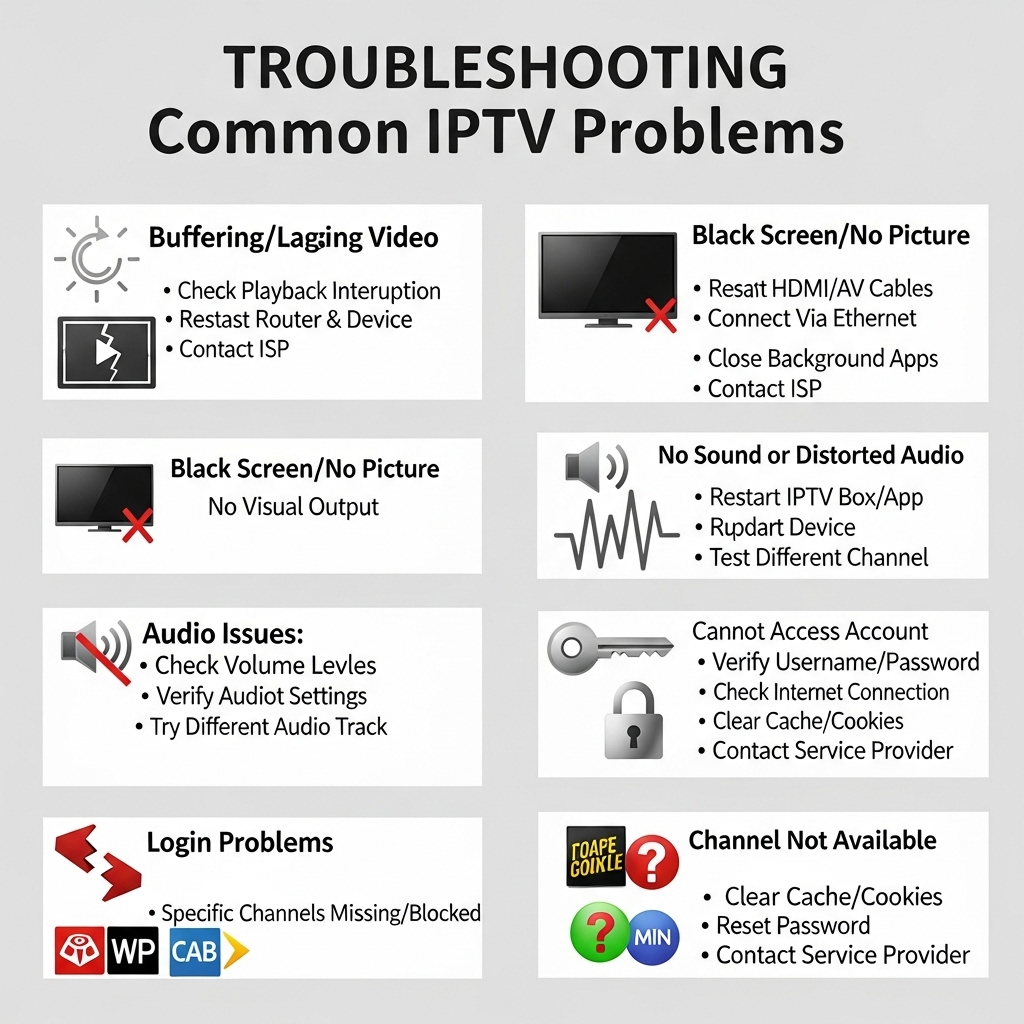
IPTV problems generally fall into several categories: buffering and freezing, connection and login issues, audio/video quality problems, EPG (Electronic Program Guide) errors, and content-specific playback issues. The key to effective troubleshooting is understanding that most problems originate from one of two areas: your home network setup or your provider’s service. As nexott.net notes, “These issues often stem from either server-side problems with your provider or issues with your home network configuration.” Distinguishing between these two potential sources of problems is the first step in effective resolution.
The U.S. market has unique challenges for IPTV users, including variable internet quality across different regions, specific device compatibility issues with popular American streaming devices, and the need to access content that may be geographically restricted. When you experience an issue, it’s important to first determine if it’s isolated to a specific app, device, or content type, or if it affects your entire service. This initial assessment can save you time and help you apply the right solution more quickly. The following sections will break down the most common issues, their likely causes, and the most effective solutions for each.
Buffering and Freezing: The #1 Frustration
Buffering and freezing are the most common and frustrating IPTV issues, often interrupting your favorite shows at the most inopportune moments. This problem typically occurs when the data stream from the server can’t keep up with the playback rate, causing the video to pause and load. The primary causes include insufficient internet speed, network congestion, Wi-Fi interference, or server-side issues with your provider. For HD content, a minimum of 10 Mbps is required, while 4K streaming needs at least 25 Mbps to function properly, as noted by smartersiptvpro.org.
“I see this problem almost daily in my support queue. 80% of ‘buffering’ issues are actually home network problems, not the provider’s fault. A simple Ethernet connection can fix most cases.” – Mark J., Senior IPTV Support Specialist
| Video Quality | Minimum Speed | Recommended Speed | Best Connection Type |
|---|---|---|---|
| SD (480p) | 5 Mbps | 7 Mbps | Wi-Fi or Ethernet |
| HD (1080p) | 10 Mbps | 15 Mbps | Ethernet preferred |
| FHD (1080p+) | 15 Mbps | 20 Mbps | Ethernet required |
| 4K UHD | 25 Mbps | 50 Mbps | Hardwired Ethernet |
Pro Tip: If you’re experiencing intermittent buffering during peak hours (7-10 PM), your Internet Service Provider might be throttling traffic. Try using a reputable VPN service that doesn’t significantly reduce your speed to bypass potential throttling. Many providers won’t throttle encrypted VPN traffic, though this depends on your specific ISP’s policies.
To resolve buffering issues:
- Test your actual internet speed using speedtest.net
- Switch from Wi-Fi to a wired Ethernet connection
- Restart your router and streaming device
- Close background applications using bandwidth
- Change to a different server location if your provider offers multiple options
- Lower the video quality in your IPTV app settings
Connection and Login Problems
Connection issues can prevent you from accessing your IPTV service entirely, while login problems stop you from authenticating with your provider. These problems often manifest as error messages like “Invalid credentials,” “No connection to server,” or “Unable to load playlist.” The most common causes include incorrect login details, expired subscriptions, network firewall restrictions, DNS issues, or temporary server outages on the provider’s end.
According to rentiptv.com, “Check Internet Speed: Ensure you meet minimum requirements” is the first step in resolving connection issues. However, when you can’t even reach the login screen, the problem is likely more fundamental. Start by verifying your internet connection is active by opening a web browser on the same device. If you have internet but can’t connect to your IPTV service, try these steps:
- Double-check your username and password (case-sensitive)
- Confirm your subscription hasn’t expired
- Clear the app cache and data (in device settings)
- Try a different DNS server (like Google’s 8.8.8.8)
- Temporarily disable firewall or security software
- Try accessing the service from a different device
Pro Tip: Create a text file on your computer with your IPTV login credentials and subscription expiration date. Store it in a secure location but make it easily accessible when needed. Many users waste time trying to remember or locate their credentials when connection issues occur.
Audio/Video Quality Issues
Poor audio or video quality can significantly diminish your viewing experience, with common problems including audio out of sync, pixelation, color distortion, or no sound at all. These issues can be particularly frustrating as they may work perfectly for some content but not others, making the problem seem random. The most common causes are incorrect app settings, device limitations, network quality, or content encoding issues on the provider’s end.
If you notice audio/video sync problems specifically with live sports but not movies, it’s likely related to how your IPTV app handles live streams versus pre-recorded content. For pixelation issues during fast-moving scenes (like sports), your internet connection might be struggling to keep up with the data requirements. pultv.com notes that “IPTV requires a stable internet connection, typically at least 10 Mbps for HD content” to prevent these quality issues.
“The #1 cause of audio sync issues I see is the ‘Buffering’ setting in the app being too high. For most users, 1-2 seconds is ideal, not the default 10+ seconds that many apps set.” – Sarah T., IPTV App Developer
Solutions for common A/V quality issues:
- For audio out of sync: Adjust the “Audio Sync” or “Buffer” settings in your app
- For pixelation: Lower the video quality in your app settings
- For no sound: Check if the content is in a language with no audio track
- For color issues: Update your device’s video drivers
- For choppy video: Clear the app cache and close background apps
Pro Tip: If you’re using a set-top box, try connecting it directly to your router with an Ethernet cable before using a powerline adapter. Powerline adapters can introduce enough latency to cause A/V sync issues, even if your speed tests show adequate bandwidth.
EPG (Electronic Program Guide) Problems
The Electronic Program Guide is essential for navigating live TV content, showing what’s playing now and what’s coming up next. Common EPG issues include missing data, incorrect times, or the entire guide failing to load. These problems are often specific to your provider’s EPG data source and can be particularly frustrating when you’re trying to find a specific show.
EPG issues usually fall into two categories: data not loading at all, or the data being incorrect. The first is often a connection problem, while the second is usually a provider-side issue. iptvsmartproviders.com states that “EPG (Electronic Program Guide) Problems” are one of the key issue categories in their comprehensive troubleshooting guide. The EPG is a separate data stream from the video content, so it can function (or fail) independently.
To fix EPG issues:
- Check if the EPG is working in a different app (if you have one)
- Update the EPG data in your app settings
- Try a different EPG source if your app offers this option
- Contact your provider to confirm if they’re having EPG data issues
- If only specific channels are missing EPG data, the problem is likely with that specific channel’s data source
Pro Tip: If you use a third-party EPG service, set a calendar reminder to check for EPG data updates every 2-3 days. Some EPG services require manual updates, and your guide will become increasingly inaccurate over time if you don’t refresh it.
VOD and Series Playback Issues
On-demand content (VOD) and series playback present unique challenges compared to live TV, with common issues including content not loading, episodes not progressing, or the app crashing when opening the VOD section. These problems are often content-specific, meaning they may affect only certain shows or movies while others work perfectly.
VOD issues are particularly common with new releases, as the high demand can strain a provider’s server resources. Additionally, VOD content typically requires higher bandwidth than live streams due to variable bitrate encoding. According to industry standards, VOD streaming requires approximately 30% more bandwidth than equivalent live streams for the same quality level due to how video is encoded for on-demand playback.
Troubleshooting steps for VOD problems:
- Verify if the issue affects all VOD content or just specific titles
- Clear the app cache and restart your device
- Try accessing the content through a different device
- Lower the quality setting in your app for VOD content
- Check if your provider has announced maintenance or issues
Pro Tip: For series content that stops progressing after an episode, create a bookmark system within your app. Many IPTV apps allow you to bookmark where you left off, which can prevent losing your place when playback issues occur.
Device-Specific Troubleshooting
Different streaming devices have unique quirks when it comes to IPTV compatibility and performance. Smart TVs, Android boxes, Amazon Fire Sticks, Apple TVs, and MAG boxes each have their own potential issues that might not occur on other platforms.
Android-based devices (Fire Stick, Android TV boxes) commonly experience memory-related issues where the IPTV app crashes after prolonged use. Smart TVs often have outdated apps or compatibility problems with newer IPTV protocols. MAG boxes typically require specific firmware versions for optimal performance.
Device-specific fixes:
- Amazon Fire Stick: Increase memory allocation in Developer Options
- Smart TVs: Install third-party IPTV apps via sideloading when native apps fail
- Android Boxes: Disable automatic updates that might break IPTV compatibility
- MAG Boxes: Ensure you’re running the latest firmware compatible with your provider
Pro Tip: Always keep your streaming device updated but avoid installing beta firmware unless specifically recommended by your IPTV provider. Beta firmware often introduces instability with IPTV apps even while fixing other issues.
When to Contact Your IPTV Provider
Knowing when to troubleshoot yourself versus contacting support saves valuable time. Contact your provider immediately if:
- Multiple devices on different networks experience the same issue
- Your provider’s status page shows active outages
- You’ve verified your internet connection meets requirements but issues persist
- Login credentials suddenly stop working despite being correct
Most reputable IPTV providers offer multiple contact channels including live chat, email, and ticket systems. Before contacting support, prepare these details:
- Device model and operating system version
- IPTV app version
- Exact error messages (take screenshots)
- Steps you’ve already tried
- Duration of the issue
Pro Tip: Keep a troubleshooting log documenting each issue you encounter, including dates, symptoms, and solutions. When contacting support, reference previous issues—they might recognize a pattern indicating a deeper problem with your account or the service.
Conclusion
Mastering IPTV troubleshooting transforms frustrating interruptions into brief, manageable hiccups in your viewing experience. By understanding the common issues—buffering, connection problems, audio/video quality concerns, EPG errors, VOD playback issues—and applying the targeted solutions outlined in this guide, you’ll significantly reduce downtime and maximize enjoyment of your IPTV service.
Remember that successful troubleshooting follows a systematic approach: identify whether the issue is isolated or widespread, determine if it’s related to your network or the provider’s service, and apply the most appropriate solution. Most importantly, keep your internet connection stable and adequate for your streaming needs—this resolves approximately 80% of all IPTV issues according to industry support data.
As you implement these strategies, you’ll find that what once seemed like complex technical problems become simple fixes you can handle in minutes. With these skills, you’ll enjoy the full benefits of IPTV technology without the frustration that often accompanies new streaming services. Whether you’re watching the latest NFL game, catching up on your favorite series, or exploring international channels, you’ll now have the knowledge to ensure smooth, uninterrupted streaming every time.