Roku is one of the most popular streaming platforms in the US, offering a sleek interface and access to thousands of official channels. However, when it comes to third-party live TV and custom streaming, users often wonder how to install IPTV on Roku. Unlike Android TV or Amazon Fire Stick, Roku operates on a closed, highly secure operating system. This means you cannot simply download any APK file or unofficial app.
In this comprehensive guide, you will learn the legitimate ways to set up IPTV on Roku, including using native apps, configuring M3U playlists, and utilizing screen mirroring. We will also cover essential troubleshooting, safety tips, and how to optimize your streaming device setup for the best viewing experience.
Disclaimer: The availability of specific apps and setup methods may vary depending on your Roku model, region, and current Roku OS version. Always ensure you are using legal IPTV services.
What Is IPTV and How Does It Work on Roku?
IPTV (Internet Protocol Television) is a technology that delivers live TV channels, video-on-demand (VOD), and sometimes catch-up TV over the internet rather than through traditional satellite or cable formats. Instead of tuning into a radio frequency, your device streams digital data directly from a server.
On Roku, IPTV works a bit differently than on open-source devices. Because Roku strictly curates its channel store, it does not support every IPTV app natively. To watch live TV on Roku via IPTV, you generally need an approved Roku IPTV app, a generic media player that accepts custom links, or an alternative casting method.
To connect to an IPTV service, providers typically use two main formats:
- M3U Playlists: A text file or web link containing the directory of all available streams.
- Xtream Codes: A login portal requiring a server address, username, and password to access your personalized dashboard.
Can You Install IPTV on Roku?
Yes, you can, but the method depends heavily on your provider and app availability. Roku is much more restrictive than Android-based devices, meaning you cannot simply sideload IPTV on Roku the way you would on a Fire Stick.
Generally, there are three main approaches to getting IPTV on Roku:
- Install a supported IPTV or live TV app directly from the official Roku Channel Store.
- Use an IPTV player for Roku that supports custom M3U or Xtream Codes inputs (if officially published by the developer).
- Cast or screen mirror the IPTV interface from your smartphone, tablet, or computer to your Roku device.
Because of Roku’s strict policies, popular Android apps like IPTV Smarters Roku are frequently unavailable in the official US store. Therefore, casting or using a compatible web video player is often the most reliable workaround for custom playlists.
What You Need Before Installing IPTV on Roku
Before diving into the setup, ensure you have the following essentials ready to guarantee a smooth experience:
- A Compatible Device: Any modern Roku streaming stick, Roku Express, or a built-in Roku TV IPTV system.
- Stable Internet Connection: A strong Wi-Fi network or a direct Ethernet connection.
- SD Streaming: Minimum 5 Mbps
- HD Streaming: Minimum 10 Mbps
- 4K Streaming: Minimum 25 Mbps
- Active IPTV Subscription: A legitimate IPTV subscription from a verified, licensed provider.
- Login Credentials: Your unique playlist URL, EPG link, or Xtream Codes IPTV details.
- Updated Firmware: Ensure your Roku has the latest firmware update installed to avoid device compatibility issues.
- HDMI Connection: If using a streaming stick, ensure it is securely plugged into an available HDMI port on your television.
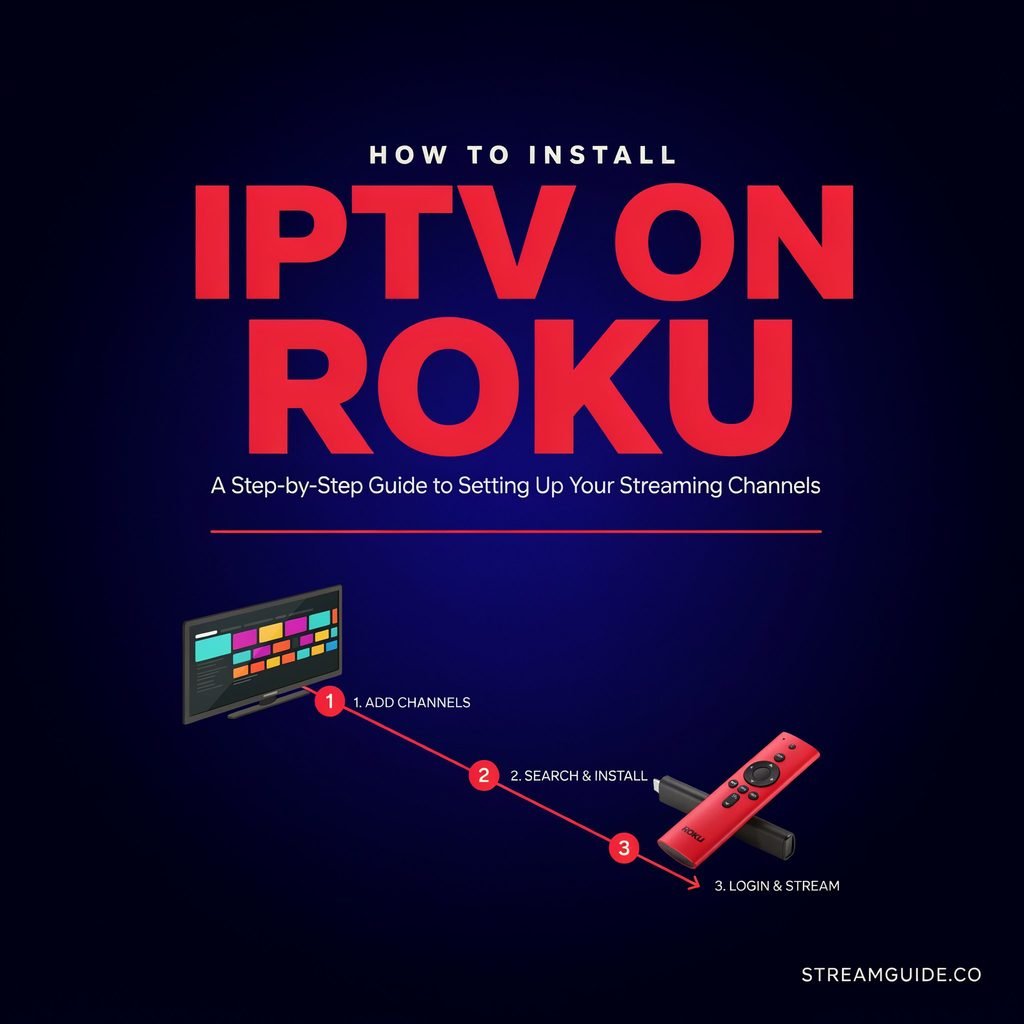
Method 1: How to Install IPTV on Roku from the Channel Store
The safest and easiest way to access live TV on Roku is by downloading an approved IPTV player for Roku or your provider’s official app.
Follow these step-by-step instructions:
- Power On: Turn on your TV and Roku device. Ensure you are connected to your internet connection.
- Navigate to the Store: From the Roku home screen, scroll down and select Streaming Channels (or use the Search function).
- Search: Use the on-screen keyboard to search for the name of your IPTV service, or search for general terms like “IPTV,” “M3U,” or “Media Player.”
- Select the App: Browse the results and select a compatible Roku IPTV app.
- Add Channel: Select Add Channel or Install. The app will download and automatically add to your home screen.
- Open the App: Once installed, launch the app from your Roku home screen.
- Sign In: Enter your login credentials or add your playlist URL as prompted by the app.
Tip: Once logged in, explore the app’s settings to enable the EPG (Electronic Program Guide). This will give you a familiar grid layout to browse channels, view showtimes, and access catch-up TV or video-on-demand libraries.
Method 2: How to Install IPTV on Roku Using Screen Mirroring
If your provider does not have an official Roku IPTV app, or if you are trying to use an app like IPTV Smarters that is native to Android, screen mirroring and casting are your best alternatives.
This method beams the video and audio from your phone or computer directly to your Roku. Both your Roku and your casting device must be connected to the exact same Wi-Fi network.
For Android Phones and Tablets
- On your Roku, go to Settings > System > Screen Mirroring and ensure it is set to “Prompt” or “Always Allow.”
- On your Android device, swipe down to access Quick Settings and tap Smart View, Cast, or Screen Mirroring.
- Select your Roku device from the list.
- Open your preferred IPTV app on your phone and start watching.
For iPhones and iPads (AirPlay)
- Ensure your Roku supports Apple AirPlay (Settings > Apple AirPlay and HomeKit > Turn On).
- Swipe down from the top right of your iOS device to open the Control Center.
- Tap the Screen Mirroring icon (two overlapping rectangles).
- Select your Roku device and enter the AirPlay passcode displayed on your TV if prompted.
For Windows PCs
- Press the
Windows Key + Kon your keyboard to open the Cast menu. - Select your Roku device from the list of available displays.
- Open your web browser or IPTV desktop application and stream directly to the TV.
Drawbacks to Consider: While casting is highly versatile, it can lead to faster battery drain on mobile devices, occasional notification interruptions on your TV screen, and slightly lower video quality compared to native apps.
Method 3: Sideloading IPTV Apps on Roku — What Users Should Know
In the Android and Fire TV communities, “sideloading” is a common way to install custom apps. However, you generally cannot sideload IPTV on Roku in the traditional sense.
Roku utilizes a proprietary coding language, meaning Android APK files will not work. Advanced users sometimes use developer mode to test “private channels” using a unique channel code provided by an app developer.
Risks of Sideloading / Private Channels:
- Security Concerns: Unverified private channels can pose data privacy risks.
- Account Issues: Roku may suspend accounts found distributing or utilizing unauthorized, pirated content channels.
- Instability: Private channels are not vetted by the channel store and frequently crash or lose audio sync.
We strongly recommend checking if your provider officially supports Roku before attempting advanced developer setups. Relying on the official store or casting is much safer and more reliable.
How to Set Up an M3U Playlist on Roku
If you are using a generic media player app from the Roku store, you will likely need to configure an M3U playlist Roku setup.
What is an M3U?
An M3U file is essentially a digital directory. It does not contain the actual video files; rather, it contains the playlist URL web addresses that tell your media player where to pull the live streams from.
How to Set It Up:
- Locate your M3U link. You can usually find this in your welcome email from your provider, inside your account dashboard, or by contacting customer support. For a deeper dive, check out our guide on [M3U playlist explained].
- Open your compatible Roku media player app.
- Navigate to the “Add Playlist” or “Settings” menu.
- Carefully type or paste the playlist URL using your Roku remote (this can be tedious, so consider using the official Roku mobile app on your phone to type the link and send it to your TV).
- Save the playlist and refresh the channel list.
Common Error: If channels do not load, ensure your URL does not have accidental spaces at the beginning or end, and verify that your IPTV subscription is still active.
How to Set Up Xtream Codes IPTV on Roku
Many modern providers prefer Xtream Codes IPTV over M3U links because it organizes content much better, separating live TV, movies, and series into distinct, easy-to-navigate categories.
Required Fields:
To log in, you will need three specific pieces of information from your provider:
- Server URL: The web address of the IPTV server (e.g.,
http://provider-url.com:8080). - Username: Your unique account ID.
- Password: Your unique account key.
- (Optional) EPG URL: A link specifically for the TV guide data.
Setup Steps:
Open your supported Roku IPTV app, select the “Xtream Codes” or “API Login” option, and enter the three credentials. Hit “Test Connection” or “Login.” If the details are correct, your custom dashboard will populate instantly. If you get an “Invalid Credentials” error, contact your provider to reset your login credentials.
Best IPTV Apps and Services for Roku
When searching for the best ways to watch IPTV, it is crucial to focus on [best IPTV services] that respect copyright laws and provide reliable server uptime. Roku supports several excellent legal live TV apps and generic media players.
What to look for in a good IPTV service:
- Transparent, legal content licensing.
- Multi-device support (including native Roku apps).
- Reliable servers with minimal buffering.
- Robust customer support.
Comparison: IPTV Options for Roku
| App/Service Type | Best For | Roku Availability | Playlist Support | Key Features |
|---|---|---|---|---|
| Official Live TV Apps | Cord-cutters wanting mainstream cable channels | High (Native in Store) | No | Cloud DVR, reliable EPG, 4K support |
| Generic Media Players | Users with custom, legal M3U links | Moderate | Yes (M3U) | Basic playback, customizable interfaces |
| Casting / Screen Mirroring | Users of Android-exclusive IPTV apps | High (OS Feature) | Yes (via Phone) | Access to any app on your mobile device |
| Provider-Specific Apps | Subscribers to major, licensed IPTV providers | Varies by Provider | Yes (Xtream/API) | VOD libraries, catch-up TV, multi-screen |
Common IPTV on Roku Problems and Fixes
Even with the best streaming device setup, you may encounter technical hiccups. Below is an IPTV troubleshooting Roku guide to help you resolve common issues quickly. For more extensive help, refer to our complete [IPTV troubleshooting guide].
| Problem | Likely Cause | Quick Fix |
|---|---|---|
| App Not in Channel Store | Region lock or app removal by Roku. | Use screen mirroring/casting from your smartphone instead. |
| M3U Playlist Not Loading | Incorrect URL or expired subscription. | Double-check the URL for typos; renew your subscription. |
| Channels Buffering or Freezing | Slow internet or overloaded IPTV server. | Restart your router, switch to 5GHz Wi-Fi, or use an Ethernet cable. |
| Login Credentials Failing | Typo or server maintenance. | Reset your password via the provider’s portal; try again later. |
| EPG Not Showing | Missing EPG URL or app glitch. | Manually input the EPG URL in settings; force close and reopen the app. |
| Audio/Video Out of Sync | Processing lag on the Roku device. | Restart the Roku device; adjust audio sync settings in your TV menu. |
| Roku Overheating/Restarting | Poor ventilation or bad power supply. | Move Roku away from heat sources; plug it into a wall outlet, not the TV USB. |
| Connection Drops | Weak Wi-Fi signal. | Move the router closer or use a Wi-Fi extender. |
Is IPTV on Roku Legal?
This is one of the most common questions regarding live TV on Roku. The short answer is: IPTV technology itself is 100% legal. It is simply a method of delivering video over the internet.
However, the legality depends entirely on whether the service you are using holds the proper distribution rights for the content it broadcasts. Legal IPTV services (like Sling TV, YouTube TV, Philo, or verified local broadcasters) pay for the rights to show their channels.
Warning: Be highly suspicious of providers offering tens of thousands of premium sports and movie channels for a suspiciously low monthly fee (e.g., $10/month for 10,000 channels). These are generally unauthorized, pirated streams. Using them violates copyright laws, and Roku frequently bans channels and accounts associated with piracy. Always choose licensed, reputable providers to ensure a safe and legal viewing experience.
Tips for the Best IPTV Streaming Experience on Roku
To minimize buffering and maximize picture quality, follow these [Roku streaming tips]:
- Hardwire Your Connection: Whenever possible, use a wired Ethernet connection rather than Wi-Fi. This provides a stable, uninterrupted data flow crucial for live sports.
- Restart Regularly: Restart your Roku device at least once a week to clear the system cache and apply background updates.
- Update Firmware: Always keep your Roku OS and your IPTV apps updated to ensure maximum device compatibility and security.
- Manage Network Load: Avoid downloading large files or running multiple 4K streams on the same Wi-Fi network while watching live IPTV.
- Use a VPN Cautiously: Some users utilize a Virtual Private Network (VPN) to protect their privacy. However, ensure VPN usage is legal in your area and permitted by your provider. Note that a VPN can sometimes reduce streaming speeds and cause buffering.
FAQs
Can I install IPTV on Roku without a subscription?
No. While you can install free, legal live TV apps like Pluto TV or The Roku Channel without a subscription, accessing premium custom IPTV requires an active, paid subscription and valid login credentials from a provider.
Does Roku support M3U playlists?
Roku does not support M3U files natively at the operating system level. However, you can use third-party media player apps available in the Roku Channel Store that are designed to read and play M3U links.
Why can’t I find IPTV Smarters in the Roku Channel Store?
IPTV Smarters Roku is highly sought after, but the app is primarily built for Android and iOS environments. Because Roku uses a proprietary coding language, the official Smarters app is rarely available natively in the US Roku store. Users typically use screen mirroring to cast the app from their phones.
Can I watch IPTV on Roku TV without an additional device?
Yes. If you own a Roku TV IPTV built-in system, you do not need an external Roku streaming stick. You can download compatible media players or cast directly to the TV using the exact same methods listed above.
How do I add an IPTV playlist to Roku?
You add a playlist by opening a compatible media player app, navigating to the settings or “Add Playlist” menu, and pasting your playlist URL using the Roku remote or the Roku mobile app.
Why is my IPTV buffering on Roku?
Buffering is usually caused by an unstable internet connection, an overloaded IPTV server, or a background app consuming bandwidth. Restart your router and ensure you are getting the minimum required Mbps for your stream quality.
Can I use Xtream Codes on Roku?
Yes, provided you use an IPTV player for Roku that features an API or Xtream Codes IPTV login portal. You will need your server URL, username, and password.
Is screen mirroring IPTV to Roku good quality?
Screen mirroring is convenient, but the quality depends entirely on your local Wi-Fi network’s strength. It may introduce slight latency or compression artifacts compared to a native app, but it is an excellent workaround for unsupported apps.
What is the best IPTV player for Roku?
The “best” player is one officially hosted in the Roku Channel Store that supports custom M3U URLs and Xtream Codes API logins. Generic media players like “MediaPlayer” or “Emby” are frequently used by advanced users for custom playlists.
How do I update an IPTV app on Roku?
Roku automatically updates apps in the background. To force an update, go to the Roku home screen, highlight the app, press the * (asterisk) button on your remote, and select “Check for Updates.”
Conclusion
Learning how to install IPTV on Roku requires a slightly different approach than setting up an Android TV box or Fire Stick, primarily due to Roku’s secure, closed ecosystem. However, by utilizing official apps from the channel store, configuring an IPTV player for Roku with your M3U or Xtream Codes, or leveraging the reliability of screen mirroring, you can easily enjoy your favorite live TV, sports, and VOD content.
Always prioritize your digital safety and legal compliance by choosing verified, legal IPTV services. If you are struggling to find your specific provider’s app, casting from your smartphone remains the most flexible and effective workaround.
Ready to start streaming? Check the Roku Channel Store for compatible media players, or contact your IPTV provider today for their specific Roku setup instructions!