Disclaimer: This guide is intended for educational and informational purposes. We strictly advise users to only subscribe to legal, licensed IPTV services that hold the proper broadcasting rights in their country. We do not promote, endorse, or provide instructions for accessing pirated content or illegal IPTV services.
Cutting the cord doesn’t mean you have to give up your favorite live channels, sports events, or on-demand movies. Today, internet-based television offers a flexible, high-quality alternative to traditional cable. If you are exploring IPTV for Nvidia Shield, you are already looking at one of the most capable and powerful streaming devices on the market.
Internet Protocol Television (IPTV) delivers live TV and video-on-demand directly through your internet connection rather than a satellite dish or cable box. Because the Nvidia Shield runs on the Android TV operating system, it acts as the perfect bridge between high-speed internet and your living room TV. It supports premium video formats, handles complex electronic program guides effortlessly, and runs the best media player apps available.
In this comprehensive guide, we will cover everything you need to know about Nvidia Shield IPTV. We will explore the best apps, walk you through a step-by-step setup, compare playlist formats, show you how to eliminate buffering, and discuss essential VPN considerations. Let’s dive in and turn your Shield into the ultimate cord-cutting machine.
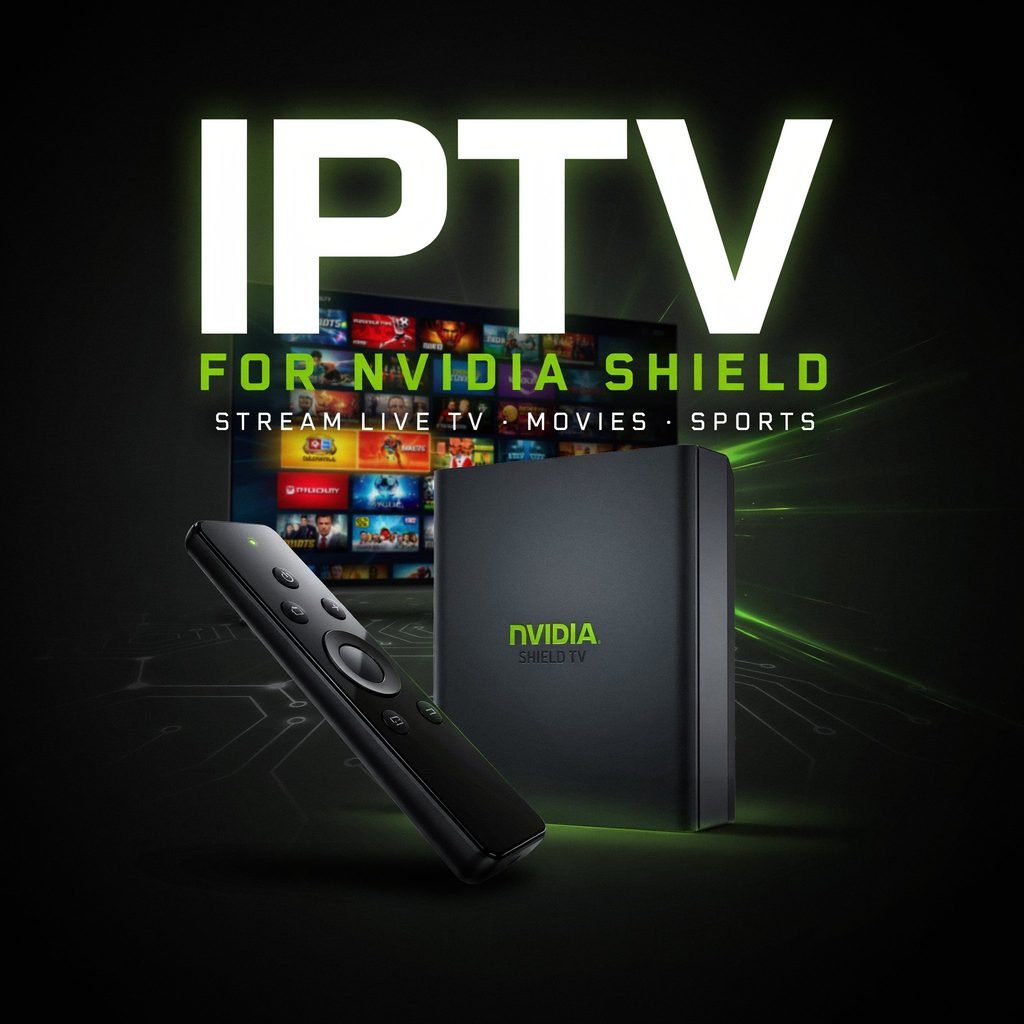
What Is IPTV for Nvidia Shield?
At its core, IPTV stands for Internet Protocol Television. It is simply a method of delivering television content over IP networks—the same networks that power your home Wi-Fi and broadband internet. Instead of tuning into a radio frequency broadcast or a physical cable line, your TV receives digital data packets that are decoded into live TV streaming, video-on-demand (VOD), and catch-up TV.
When we talk about Android TV IPTV, we are referring to the ecosystem where your Nvidia Shield acts as the hardware hub. However, it is vital to understand the difference between an IPTV service and an IPTV player app.
An IPTV service is the licensed provider that owns or leases the broadcasting rights to the channels and movies you want to watch. They supply the actual content streams. An IPTV player app, on the other hand, is merely the software interface installed on your Nvidia Shield. The player app does not contain any content itself; it simply acts as a sophisticated media browser that reads the playlist or login credentials provided by your legal IPTV subscription. By combining a legitimate provider with a high-quality player app, you create a seamless, cable-like viewing experience right on your Android TV box.
Is Nvidia Shield Good for IPTV?
The Nvidia Shield is widely considered the gold standard for streaming devices, and for good reason. While cheaper streaming sticks might struggle with large channel lists or high-bitrate 4K streams, the Shield is built with premium hardware that easily handles the demands of modern IPTV.
Whether you are using the standard Shield TV (the “tube” model) or the Shield TV Pro (the set-top box with expanded RAM and storage), the device is powered by Nvidia’s Tegra X1+ processor. This processing power ensures that flipping through hundreds of channels, loading high-resolution channel logos, and rendering complex electronic program guides happens instantly.
Furthermore, the Shield’s robust connectivity options make it ideal for live streaming. Live TV is highly sensitive to network fluctuations, and the Shield TV Pro includes a built-in Ethernet port, allowing for a hardwired, stable connection that vastly outperforms standard Wi-Fi.
| Feature | Why It Matters for IPTV |
|---|---|
| Android TV platform | Supports IPTV player apps such as TiviMate and IPTV Smarters Pro |
| 4K HDR playback | Useful for high-quality legal live TV and VOD |
| Ethernet port | Helps reduce Wi-Fi-related buffering |
| Strong hardware | Handles channel switching, EPG loading, and multitasking smoothly |
| Google Play Store | Makes installing legitimate IPTV apps simple |
Best IPTV Players for Nvidia Shield
Choosing the right software is just as important as the hardware. The Google Play Store hosts several excellent Nvidia Shield TV IPTV apps. Here is a breakdown of the top contenders to help you find the best IPTV player for Nvidia Shield.
TiviMate
TiviMate is widely regarded as the undisputed king of Android TV IPTV players. It is designed specifically for TV remotes and large screens, offering an interface that closely mimics a traditional cable or satellite set-top box. TiviMate excels in EPG (Electronic Program Guide) quality, allowing you to see what is playing now and next across multiple channels simultaneously. It supports multi-playlist management, extensive channel grouping, and incredibly fast channel “zapping” (switching). For users who want a polished, premium live-TV guide experience, TiviMate Nvidia Shield integration is the top choice.
IPTV Smarters Pro
If you are a beginner or prefer an app that works across multiple devices (like your phone, tablet, and TV), IPTV Smarters Pro is a fantastic option. It features a highly visual, tile-based interface that separates live TV, movies, and series into distinct, easy-to-navigate categories. It natively supports Xtream Codes login details and M3U URLs. While its live TV guide isn’t quite as dense or cable-like as TiviMate’s, its VOD (Video on Demand) layout is incredibly user-friendly. Note that availability on the Play Store can occasionally vary by region, but it remains a staple for IPTV Smarters Pro Nvidia Shield users.
XCIPTV
XCIPTV is built for users who value customization and a modern, sleek aesthetic. It offers a highly branded feel and allows for deep personalization of the interface. It handles EPG data well and organizes VOD content beautifully. XCIPTV is particularly useful if you manage multiple legal IPTV subscriptions, as it makes switching between different provider profiles relatively seamless.
Kodi with PVR IPTV Simple Client
Kodi is a powerhouse media center application, and when paired with the PVR IPTV Simple Client add-on, it becomes a highly capable IPTV player. This route is best for advanced users and tinkerers. Kodi allows you to combine local media libraries, streaming add-ons, and live TV into one unified interface. However, setting up M3U playlists and XMLTV EPG files in Kodi requires more manual configuration than dedicated apps like TiviMate. It offers ultimate control but comes with a steeper learning curve.
OTT Navigator
OTT Navigator is the closest direct competitor to TiviMate and is aimed squarely at power users. It offers incredibly granular settings for stream buffering, EPG parsing, and channel filtering. If you have a massive playlist from a legal provider and need advanced tools to hide duplicate channels, map specific EPG IDs, or manage catch-up TV archives, OTT Navigator provides the deep-dive customization required to perfect your setup.
TiviMate vs. IPTV Smarters Pro for Nvidia Shield
If you are torn between the two most popular apps, here is a direct comparison to help you decide.
| Feature | TiviMate | IPTV Smarters Pro |
|---|---|---|
| Ease of setup | Moderate (Requires some EPG mapping) | Very Easy (Plug-and-play layout) |
| EPG quality | Exceptional (Cable-like grid guide) | Good (Basic list and mini-guide) |
| Interface | Traditional TV Guide / Set-top box | Modern, tile-based, app-like |
| M3U support | Yes | Yes |
| Xtream Codes support | Yes (Highly optimized) | Yes (Native integration) |
| Best user type | Live TV & Sports enthusiasts | VOD, Movie, & Series binge-watchers |
| Overall recommendation | Best for pure live television | Best for an all-in-one media hub |
The Recommendation:
Choose TiviMate if your primary focus is watching live television, sports, and news, and you want the best live-TV guide experience available on Android TV.
Choose IPTV Smarters Pro if you want a simple setup and a familiar all-in-one layout that heavily emphasizes Movies and TV Shows alongside live channels.
Choose Kodi only if you are an advanced user looking for deep, system-wide customization.
How to Set Up IPTV on Nvidia Shield
Setting up your device is a straightforward process. Follow this Nvidia Shield IPTV setup guide to get your legal streams running perfectly.
Step 1: Update Your Nvidia Shield
Before installing new apps, ensure your device’s operating system is current. Go to the Shield’s Settings > Device Preferences > About > System Update. Install any available updates and restart the device. This ensures maximum compatibility with the latest Android TV IPTV apps and security patches.
Step 2: Connect to a Stable Internet Connection
Live TV requires a consistent, stable data stream. While the Shield has excellent Wi-Fi, we strongly recommend using an Ethernet connection if your router is nearby. If you must use Wi-Fi, ensure you are connected to a 5GHz band to avoid interference. As a general rule, you need at least 5 Mbps for SD streams, 10 Mbps for HD, 20 Mbps for Full HD, and 25+ Mbps for stable 4K IPTV Nvidia Shield streaming.
Step 3: Install an IPTV Player App
Open the Google Play Store on your Shield and search for your chosen player, such as TiviMate or IPTV Smarters Pro. Download and install the app. Note: If an app is not available in your region’s Play Store, you may need to “sideload” it. Only download APK files directly from the official developer’s website to avoid malware. Enable “Unknown Sources” in your Shield’s security settings only for the specific file manager or browser you use to install the official APK.
Step 4: Add Your IPTV Subscription
Open the installed app and look for the “Add Playlist” or “Login” section. You will generally use one of two methods provided by your legal IPTV service:
- Xtream Codes login: Enter the Server URL, your Username, and your Password. This is the most reliable method as it automatically pulls in your account details, VOD, and EPG data.
- M3U playlist URL: Paste the long web link (ending in .m3u or .m3u8) provided by your service. The app will parse the link and extract the channel list.
Step 5: Load the EPG
The Electronic Program Guide (EPG) is what tells you what is playing on each channel. If you used Xtream Codes, the EPG usually loads automatically. If you used an M3U link, you may need to manually input an XMLTV EPG URL provided by your service. Once added, navigate to the app’s settings and select “Update EPG” or “Reload Guide.” Allow a few minutes for the data to download and sync.
Step 6: Organize Channels and Favorites
Legal providers often supply hundreds of channels. Scrolling through them all is tedious. Use your app’s settings to create custom groups. Create a “Favorites” list for your most-watched news, sports, and local channels. Hide unused categories (like international channels you don’t speak) to keep your interface clean and snappy.
Xtream Codes vs. M3U Playlist on Nvidia Shield
When you sign up for a legitimate IPTV service, they will usually offer you credentials in one of two formats. Understanding the difference helps you choose the best setup method.
| Feature | Xtream Codes | M3U Playlist |
|---|---|---|
| Login details | Server URL, username, password | Single Playlist URL |
| EPG integration | Often automatic via API | May require separate XMLTV EPG link |
| Setup difficulty | Usually easier and cleaner | Simple but can require more manual configuration |
| Best for | Most modern IPTV subscriptions | Basic playlists or self-managed sources |
In Plain English:
Think of Xtream Codes as a full software API. When you log in, the app talks directly to the provider’s server, pulling down your specific channel list, your personalized VOD library, and the EPG data automatically. It is dynamic and highly reliable.
An M3U playlist, on the other hand, is essentially a static text file containing a list of web links to video streams. While easy to generate, it requires the app to do more heavy lifting to sort the channels, and you often have to provide a separate link just to get the TV guide (EPG) working. Whenever possible, use Xtream Codes for a smoother Nvidia Shield IPTV experience.
How to Fix IPTV Buffering on Nvidia Shield
Nothing ruins a live sports game or a movie night like constant buffering. If you are experiencing IPTV buffering Nvidia Shield issues, work through this troubleshooting checklist:
- Use Ethernet instead of Wi-Fi: This is the single most effective fix. Hardwiring your Shield eliminates wireless interference and packet loss.
- Restart your network: Power cycle your router, modem, and the Nvidia Shield to clear out temporary network bugs.
- Close background apps: The Shield is powerful, but running heavy games or multiple streaming apps in the background can eat up RAM and CPU resources.
- Clear app cache and data: Go to Settings > Apps > [Your IPTV App] > Clear Cache. This removes corrupted temporary files that might be slowing down the guide or stream loading.
- Update the IPTV player app: Developers frequently release patches to improve stream decoding and memory management.
- Lower stream quality temporarily: If your internet is struggling, check if your provider offers 720p or 1080p alternatives to the 4K stream.
- Isolate the issue: Check if buffering happens on all channels or just one. If it is just one channel, the issue is likely on the provider’s server, not your Shield.
- Evaluate your provider: Avoid overloaded or suspiciously cheap IPTV providers. Legitimate, well-managed services invest in robust server architecture to prevent congestion during peak hours.
- Consider a VPN: In some cases, ISPs throttle high-bandwidth video traffic. A reputable VPN can bypass this (more on this below).
Should You Use a VPN for IPTV on Nvidia Shield?
A Virtual Private Network (VPN) encrypts your internet traffic and routes it through a secure server, masking your IP address. When discussing a VPN for IPTV Nvidia Shield setups, it is important to separate fact from fiction.
A VPN is an excellent tool for digital privacy and can prevent your Internet Service Provider (ISP) from “throttling” (intentionally slowing down) your connection when it detects heavy video streaming. It can also help you access regional content that your legal provider might offer but is geo-blocked in your current location.
However, you must understand a crucial legal boundary: A VPN does not make an illegal IPTV service legal. If a service is broadcasting copyrighted content without permission, using a VPN to hide your activity does not change the legal status of the service or your access to it. We strongly recommend checking your local laws, reviewing your IPTV provider’s terms of service, and using a VPN strictly for privacy, security, and preventing ISP throttling on legitimate streams.
What to Look for in a Legal IPTV Service
The market is flooded with streaming options, but not all of them are legitimate. To protect your money, your data, and your Nvidia Shield, use this checklist when evaluating an IPTV service:
- Official licensing: The provider should be transparent about their company registration and broadcasting rights.
- Clear channel list: Legitimate services publish accurate, localized channel lists without relying on vague promises.
- Reliable EPG: A good service provides accurate, up-to-date TV guide data.
- Catch-up TV or DVR: Look for features that allow you to rewind live TV or record shows.
- Multiple device support: You should be able to watch on your Shield, phone, and tablet simultaneously.
- Responsive customer support: Test their support team before committing to a long-term contract.
- Free trial or money-back policy: Reputable companies stand behind their service quality.
- Transparent pricing: Prices should reflect the cost of licensing content.
- Positive independent reviews: Look for reviews on trusted tech forums and review sites.
- Red Flags: Avoid any service promising “10,000+ premium global channels and all PPV events for $5 a month.” This is a massive red flag for piracy, and these services are frequently shut down, leaving you with a useless app and lost money.
Common Nvidia Shield IPTV Problems and Fixes
Even with the best hardware, software hiccups happen. Use this table to quickly diagnose and resolve common issues.
| Problem | Likely Cause | Fix |
|---|---|---|
| Channels not loading | Wrong playlist or expired subscription | Recheck credentials and subscription status |
| EPG not showing | Missing EPG URL or sync issue | Refresh EPG or add XMLTV link in app settings |
| Buffering | Slow connection, Wi-Fi interference, server congestion | Use Ethernet, restart router, test another channel |
| App crashing | Outdated app or corrupted cache | Update app, clear cache, reinstall if needed |
| Audio/video sync issue | Playback or codec issue | Change player settings (e.g., HW/SW decoder) or restart stream |
| Remote lag | Too many apps running or low RAM | Restart Shield and close background apps |
Nvidia Shield IPTV Setup Tips for Best Performance
To ensure your setup runs flawlessly for years to come, implement these optimization tips:
- Enable Match Frame Rate: If your TV and IPTV app support it, enable “Match Frame Rate” in the display settings. This forces the TV to match the refresh rate of the video (e.g., 24fps for movies, 50/60fps for live sports), eliminating judder.
- Keep the Shield updated: Enable automatic system and app updates to ensure you have the latest codec support and security patches.
- Use a wired connection: We cannot stress this enough. For 4K IPTV Nvidia Shield streaming, Ethernet is vastly superior to Wi-Fi.
- Curate your favorites: Don’t scroll through 1,000 channels. Create a robust favorites list to make navigation instantaneous.
- Launch on startup: If your Shield is dedicated primarily to live TV, configure your IPTV app to launch automatically when the device boots up.
- Use quality cables: Ensure you are using a certified Premium High-Speed HDMI cable capable of handling 4K HDR bandwidth.
- Reboot periodically: Restart your Nvidia Shield once a week to clear the system cache and maintain snappy performance.
Frequently Asked Questions
Can you watch IPTV on Nvidia Shield?
Yes. The Nvidia Shield runs Android TV, which fully supports IPTV player apps available on the Google Play Store, making it one of the best devices for the task.
What is the best IPTV app for Nvidia Shield?
TiviMate is widely considered the best app for live TV due to its exceptional cable-like interface and EPG handling. IPTV Smarters Pro is a close second for users who prefer a tile-based VOD interface.
Does Nvidia Shield support 4K IPTV?
Absolutely. The Nvidia Shield supports 4K HDR and Dolby Vision. As long as your legal IPTV provider supplies 4K streams and your internet connection is fast enough, the Shield will play them flawlessly.
Do I need a subscription for IPTV on Nvidia Shield?
Yes. The apps on the Shield are just empty players. You must purchase a subscription from a legal, licensed IPTV provider to get the credentials needed to load channels and content.
What is Xtream Codes on Nvidia Shield?
Xtream Codes is an API-based login method used by many IPTV providers. Instead of a long web link, you log into your player app using a Server URL, Username, and Password, which automatically syncs your channels and guide.
Can I use M3U playlists on Nvidia Shield?
Yes. Almost all IPTV player apps on the Shield allow you to paste an M3U playlist URL to load channels. However, you may need to manually add an XMLTV link to get the TV guide working.
Why is my IPTV buffering on Nvidia Shield?
Buffering is usually caused by Wi-Fi interference, insufficient internet bandwidth, or server congestion on the provider’s end. Switching to an Ethernet connection and clearing the app cache usually resolves local device issues.
Is IPTV legal?
The technology of IPTV is completely legal. However, the legality depends entirely on the service provider. You must only subscribe to licensed providers that hold the broadcasting rights for the content they distribute in your region.
Do I need a VPN for IPTV on Nvidia Shield?
A VPN is not strictly required to watch IPTV, but it is highly recommended for protecting your digital privacy and preventing your ISP from throttling your video streaming bandwidth.
Is TiviMate free on Nvidia Shield?
TiviMate offers a free basic version that allows you to load playlists and watch live TV. However, to unlock essential features like catch-up TV, favorites management, and multiple playlist support, you must purchase a premium unlock directly through the app.
Final Verdict: Is IPTV for Nvidia Shield Worth It?
If you are looking to cut the cord without sacrificing the premium feel of a traditional cable box, the Nvidia Shield is arguably the best piece of hardware you can buy. Its combination of raw processing power, 4K HDR support, native Ethernet connectivity, and seamless access to the Google Play Store makes it an unmatched Android TV IPTV device.
When paired with top-tier software like TiviMate for guide-focused viewing or IPTV Smarters Pro for a simpler, media-hub layout, the Shield transforms into a powerhouse entertainment center. By understanding the difference between Xtream Codes and M3U playlists, optimizing your network to prevent buffering, and taking the time to organize your favorites, you can build a streaming setup that rivals any mainstream cable package.
However, the foundation of a great streaming experience is a reliable, legitimate source. Always prioritize licensed providers that respect broadcasting laws and offer transparent customer support. Choose a legal IPTV provider, install a trusted player like TiviMate, and follow the setup steps above to turn your Nvidia Shield into a powerful live-TV streaming device.