Cord-cutting has evolved from a niche movement to the mainstream way we consume media, and at the heart of this revolution is the combination of IPTV on Firestick. As traditional cable bills continue to skyrocket, millions of viewers are turning to Internet Protocol Television for a more flexible, affordable, and personalized viewing experience. When paired with Amazon’s wildly popular streaming device, you unlock a powerhouse of live channels, on-demand content, and global entertainment.
But how do you actually get started? Whether you are a seasoned streamer or a beginner looking to cut the cord, navigating the world of streaming apps, sideloading, and network optimization can feel overwhelming. This comprehensive guide will walk you through everything you need to know to install IPTV Firestick setups safely and effectively. From understanding what IPTV is and choosing the right provider to step-by-step installation and troubleshooting buffering issues, we have you covered. Let’s dive into the ultimate guide to transforming your Amazon Fire TV Stick into the ultimate cord-cutting command center.
What is IPTV?
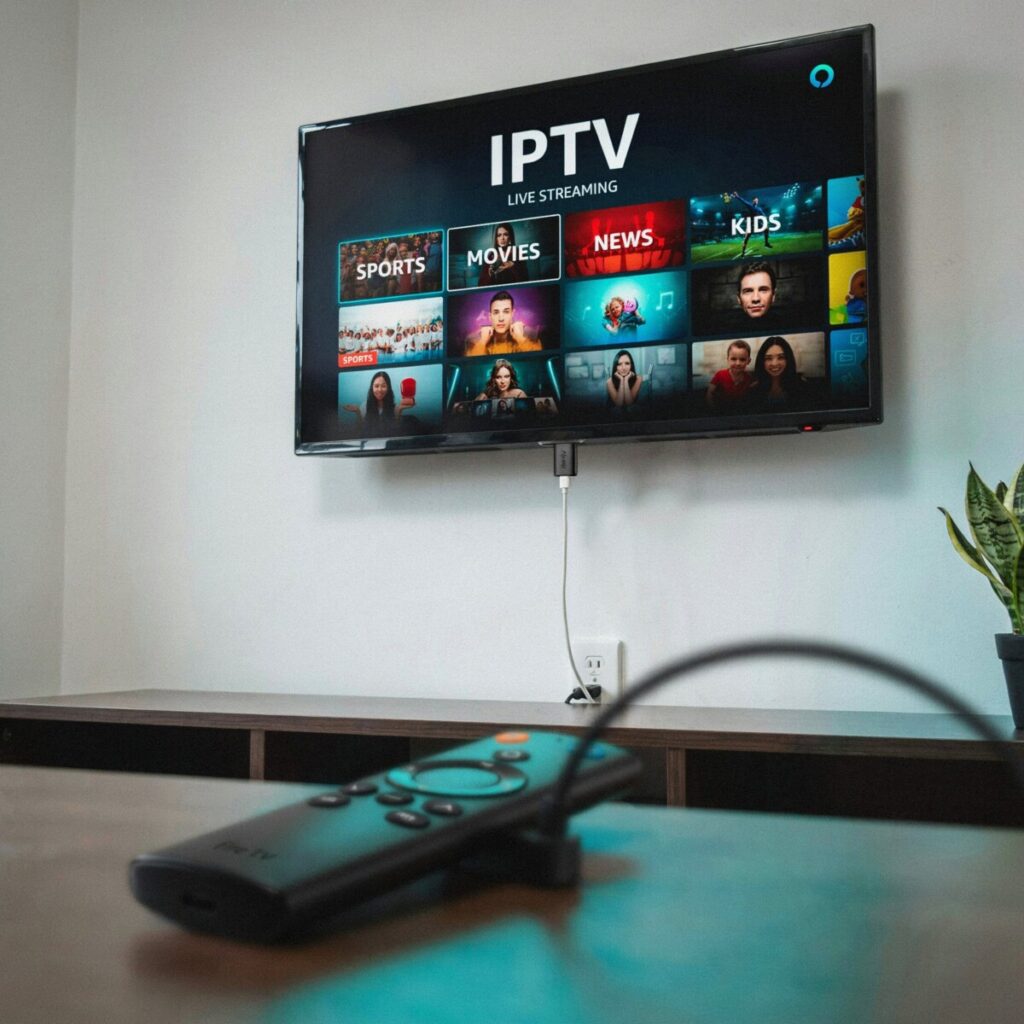
Before we dive into the setup, let’s clarify what we are actually talking about. IPTV, or Internet Protocol Television, is a technology that delivers television content and video streams over the internet rather than through traditional satellite or cable formats. Instead of receiving signals via a rooftop antenna or a coaxial cable, your media player fetches data directly through your broadband connection.
There are three primary types of IPTV services you will encounter:
- Live TV: Broadcasting real-time television channels, much like traditional cable but streamed over the web.
- VOD (Video on Demand): A library of movies and shows you can watch whenever you want, similar to Netflix or Hulu.
- Catch-up TV: Allows you to watch previously aired broadcasts from the last few days.
It is crucial to understand the distinction between legal IPTV services and unauthorized streams. Legal providers—such as Sling TV, YouTube TV, or Pluto TV—hold proper broadcasting licenses for the content they distribute. Conversely, illegal IPTV services offer premium channels and pay-per-view events for a fraction of the cost without the rights to do so. Using unauthorized portals can expose you to legal risks, malware, and sudden service shutdowns. Always aim to use legitimate providers or thoroughly vet the source of your M3U playlist to ensure a safe and sustainable viewing experience. Understanding this landscape is the first step toward building a reliable, high-quality home entertainment system that won’t unexpectedly vanish overnight.
Why Firestick is a Great Choice for IPTV
When it comes to building the perfect cord-cutting setup, the Amazon Fire TV Stick IPTV ecosystem stands out as a top-tier choice. But why is this specific streaming device so beloved by the community?
First, affordability and portability are unmatched. You can easily slip a Firestick into your pocket for travel or move it from the living room to the bedroom in seconds. Second, Amazon’s robust app ecosystem and the ability to sideload third-party APKs give users unparalleled freedom. Unlike locked-down systems, Fire OS allows you to install specialized Fire TV IPTV apps that aren’t always available in mainstream app stores.
Furthermore, modern Firesticks boast impressive hardware, including 4K support, Dolby Vision, and seamless integration with Alexa voice controls, making it incredibly easy to search for live channels or VOD IPTV Firestick content using just your voice.
How does it compare to the competition? An Android IPTV box vs Firestick debate often comes down to raw power versus ease of use. While high-end Android TV boxes might offer more RAM, the Firestick provides a much more streamlined, user-friendly interface and a massive community of users for troubleshooting. Compared to Roku or standard Smart TVs, the Firestick’s flexibility with sideload IPTV Firestick methods makes it the undisputed king of custom streaming setups.
Choosing the Right IPTV Service
The success of your setup heavily depends on the provider you choose. Evaluating the best IPTV providers 2026 has to offer requires looking beyond just the monthly price tag. Here is how to properly vet a service before handing over your credit card information.
Start by examining the channel list and VOD library. Does it offer the specific live TV on Firestick channels, regional sports networks, or international content you crave? Next, check for Electronic Program Guide (EPG on Firestick) support. A good provider will supply an active EPG so you can see what’s playing now and next, rather than just a blank channel number.
You will also need to check the delivery format. Most providers use an M3U URL Firestick format, Xtream Codes API (which requires a username, password, and server URL), or a proprietary portal. Ensure your chosen IPTV player for Firestick supports the format your provider uses.
Red Flags to Avoid:
- Anonymous Sellers: Avoid providers who only accept cryptocurrency and have no verifiable contact information.
- Lifetime Subscriptions: If a service offers “lifetime access” for a one-time payment of $20, it is almost certainly a scam or a fly-by-night operation that will be shut down by authorities.
- No Free Trials: Legitimate services want to prove their uptime and streaming quality. Always look for a 24-hour trial.
The Ultimate Vetting Checklist:
- Test the trial during peak hours (e.g., Sunday night sports) to check for IPTV buffering Firestick issues.
- Read independent reviews on forums like Reddit or Trustpilot.
- Confirm they offer responsive customer support via Telegram or email.
How to Install IPTV Apps on Firestick (Step-by-Step)
Ready to get your live TV on Firestick? Since many top-tier IPTV apps are not natively available in the official Amazon Appstore, you will need to use a process called sideloading (see our full guide on [How to sideload apps on Firestick] for more details). Here is how to install IPTV on Amazon Firestick step by step.
Step 1: Prepare Your Firestick
Before downloading any APKs, you must enable developer options.
- Go to Settings > My Fire TV > About.
- Click on the Fire TV Stick name 7 times rapidly until you see the message “You are now a developer.”
- Go back to Settings > My Fire TV > Developer Options.
- Turn on Install Unknown Apps (or “Apps from Unknown Sources” on older models).
Step 2: Sideload via Downloader
The easiest way to sideload IPTV Firestick apps is by using the Downloader app, which is available in the official Amazon store.
- Search for and install the Downloader app from the Amazon Appstore.
- Open Downloader and grant it permission to access your files.
- In the URL bar, enter the specific Downloader code or direct APK download link for your chosen app.
- Click Go. The app will download and prompt you to click Install.
- Once installed, click Done and delete the APK file to save space.
Step 3: Add Your IPTV Playlist or Portal
Once your IPTV Smarters Firestick or TiviMate Firestick app is installed, open it to add your service. Once you know how to add M3U playlist to Firestick IPTV player interfaces, the process is simple.
- For M3U Playlists: Select “Load M3U Playlist,” name your profile, and paste the M3U URL provided by your legal service.
- For Xtream Codes: Select “Login with Xtream Codes API,” then enter your username, password, and the server URL.
- Importing EPG: If your guide isn’t populating, go to the app’s settings and paste the XMLTV URL provided by your service to sync the EPG on Firestick.
By following these steps, you will have a fully functioning Firestick IPTV setup in under ten minutes.
Network, Performance, and Optimization Tips
Even the best legal IPTV services will struggle if your home network isn’t optimized. To ensure a flawless IPTV streaming Firestick experience, you need to manage your bandwidth and hardware correctly.
First, check your internet speeds. For standard definition (SD), you need at least 5 Mbps. For high definition (HD), aim for 10-15 Mbps. If you are pushing 4K content, a stable 25 Mbps or higher is mandatory.
Wi-Fi can be unreliable due to interference. If you frequently experience stuttering, invest in an Amazon Ethernet adapter for your Firestick. A hardwired connection drastically reduces latency and packet loss, virtually eliminating IPTV buffering Firestick issues.
Next, optimize the Firestick itself. Go to Settings > Applications and clear the cache on your media player apps regularly. Close background apps that might be hogging bandwidth. Within your IPTV app’s settings, adjust the video cache and hardware acceleration settings to match your device’s capabilities.
Finally, consider a Firestick VPN for IPTV streaming. A premium VPN (Virtual Private Network) encrypts your traffic, protecting your privacy from your Internet Service Provider (ISP). ISPs are known to initiate ISP throttling when they detect heavy video streaming. A good VPN prevents this throttling, ensures smooth playback, and can help bypass geo-restrictions on certain legal international channels. When searching for the best VPN for Firestick IPTV streaming, look for a provider with a native Fire TV app, fast servers, and a strict no-logs policy.
Safety, Legal, and Privacy Considerations
When exploring cord-cutting options, staying on the right side of the law and protecting your digital footprint is paramount. As mentioned earlier, always stick to legal IPTV services that hold proper broadcasting rights. Using unauthorized streams not only violates copyright laws but also exposes your home network to malicious software often bundled with shady APKs.
Privacy is another major concern. Without encryption, your ISP can see exactly what you are streaming, which can lead to targeted throttling or privacy breaches. Using a reliable VPN is the best way to shield your viewing habits. However, it is important to note that a VPN provides privacy and security; it does not grant you legal immunity to access pirated or infringing content.
Furthermore, keep your Firestick firmware and all installed apps updated. Developers frequently release patches to fix security vulnerabilities. Finally, use strong, unique passwords for your IPTV provider portals and Amazon account, and enable two-factor authentication wherever possible to keep your streaming ecosystem secure.
Troubleshooting Common Problems
Even with a perfect setup, you might occasionally run into hiccups. Here is a quick command-like checklist to troubleshoot the most common Firestick IPTV setup issues.
- Problem: Constant Buffering or Stuttering
- Fix: Run a speed test on your Firestick. If speeds are low, restart your router. Ensure no other devices are downloading large files. Switch the stream to a lower bitrate or resolution in the app settings.
- Problem: App Crashes or “App Not Installed” Error
- Fix: Go to Settings > My Fire TV > Developer Options and ensure “Install Unknown Apps” is toggled ON for Downloader. Clear the app’s cache, or uninstall and reinstall the APK to fix corrupted files.
- Problem: EPG Not Syncing or Channels Missing
- Fix: Double-check your M3U URL or Xtream Codes credentials for typos. Force a playlist update within the app settings. If channels are still missing, check your provider’s Telegram or status page—they may be experiencing server downtime.
- Problem: Audio/Video Out of Sync
- Fix: Pause the stream for 10 seconds and resume. If that fails, check your app’s audio settings and toggle hardware decoding on or off.
Most issues with live TV on Firestick stem from network congestion rather than the device itself. Keeping this troubleshooting list handy will save you hours of frustration and keep your movie night on track.
Best Apps and Accessories for IPTV on Firestick
To elevate your experience, pairing your device with the right software and hardware is essential.
For software, TiviMate is widely considered the gold standard for its incredibly fast interface and excellent playlist management (check out our [TiviMate vs IPTV Smarters comparison] for more). IPTV Smarters offers a highly visual, user-friendly layout perfect for families, while Perfect Player is a lightweight alternative. For power users who want absolute control, Kodi with a PVR IPTV Simple Client addon remains a top-tier Kodi IPTV Firestick solution. Don’t forget the Downloader app for all your sideloading needs.
On the hardware side, an Ethernet adapter is the single best accessory you can buy, serving as the ultimate hardware solution among all stop buffering IPTV on Firestick tips. Additionally, upgrading to a Bluetooth keyboard or a premium remote with air-mouse capabilities makes searching through massive VOD libraries and typing in M3U URLs significantly easier.
Conclusion and Call to Action
Setting up IPTV on an Amazon Firestick is one of the most rewarding cord-cutting projects you can undertake. By choosing a reputable provider, properly sideloading your favorite media player, and optimizing your home network with an Ethernet adapter and a reliable VPN, you can enjoy a flawless, high-quality streaming experience.
Remember to always prioritize legal alternatives to illegal IPTV services to keep your home network safe and secure.
What is your preferred app for live channels? Have you run into any weird buffering issues lately? Drop a comment below with your tips, and be sure to check out our guide on the [Best VPNs for Firestick 2026] to keep your streams private and buffer-free!