Cutting the cord has never been more popular, and for many viewers, the ultimate goal is learning how to setup IPTV on Samsung Smart TV models to enjoy a personalized, flexible entertainment experience. Internet Protocol Television offers incredible convenience, allowing you to watch live television, on-demand video, browse electronic program guides, and enjoy catch-up content entirely through your internet connection. Whether you are switching from traditional cable or simply looking to expand your viewing options, the process is straightforward once you understand the basics.
Generally, a successful setup involves three core elements: a Samsung Smart TV connected to the internet, a compatible IPTV player application, and a lawful IPTV subscription, playlist, or account. In this comprehensive guide, we will walk you through everything you need to know to get started safely and effectively.
What Is IPTV?
Before diving into the installation, it is important to understand what internet television actually is. IPTV stands for Internet Protocol Television. Unlike traditional cable, satellite, or antenna broadcasts that rely on physical cables or radio waves, IPTV delivers television content over an internet connection. This modern delivery method supports various types of media, including live TV streaming, video on demand (VOD), time-shifted television, and catch-up TV.
However, IPTV is simply a delivery technology, not a specific channel provider or a single application. The quality of your experience depends heavily on your internet speed, network stability, app compatibility, and the infrastructure of your chosen streaming service. Furthermore, it is crucial to remember that IPTV does not automatically mean every available stream is legal. To enjoy IPTV channels on Samsung TV devices safely, you must use a legal IPTV provider and only access content for which you have proper viewing rights.
Essential Requirements to Setup IPTV on Samsung Smart TV
To ensure a smooth Samsung IPTV setup, gather the following items before you begin:
- A Samsung Smart TV (preferably running a recent version of Tizen OS).
- A stable Wi-Fi or wired Ethernet connection.
- A Samsung account, if required by your Smart Hub to download apps.
- A compatible IPTV player.
- A legal IPTV subscription for Samsung Smart TV usage.
- Your IPTV playlist URL, Xtream Codes API credentials, or provider login details.
- Your TV remote control.
- Correct date, time, country, and region settings on your TV.
- Updated TV software and app versions.
When it comes to your network, a wired Ethernet connection is often more reliable than Wi-Fi for live streaming, especially if your TV is located far from the router. While many users ask for a specific required internet speed, there is no universal number. The necessary bandwidth depends on the video resolution (SD, HD, or 4K), the number of simultaneous streams on your network, general network traffic, and your provider’s server infrastructure.
Check Your Samsung TV Model and Software
Because app availability can vary significantly by Samsung TV model, Tizen version, country, and region, it is wise to check your system information first. You can generally locate your TV model and software information through the Settings menu. While exact menu names differ by model year, the common path is:
- Open Settings.
- Select Support.
- Choose About This TV (or Contact Samsung).
- Check Software Update to ensure your firmware is current.
Take note of your TV model number, Tizen software version, available storage, country or region setting, and internet connection status. Keep in mind that some older Samsung models may not support newer Tizen IPTV app applications due to hardware or software limitations. Always use the official Samsung app store whenever possible to ensure secure downloads.
Connect the Samsung Smart TV to the Internet
Your TV must be online to access the Smart Hub. Here is how to connect using either method. Note that exact menu labels vary by Samsung model and Tizen version.
Connecting via Wi-Fi:
- Press the Home button on your remote.
- Open Settings.
- Select General or Connection.
- Open Network settings.
- Choose Wireless (or Open Network Settings).
- Select your home Wi-Fi network.
- Enter your Wi-Fi password.
- Test the connection to confirm it is active.
Connecting via Ethernet:
- Connect an Ethernet cable directly from your router to the TV’s LAN port.
- Open Network settings in the menu.
- Select Wired connection.
- Allow the TV to automatically detect the network and test the connection.
Practical Tips: If the TV cannot connect, restart your router. Move the router closer or reduce physical obstructions to improve signal strength, and avoid congested Wi-Fi networks. If issues persist, test another streaming app to determine whether the problem lies with your internet connection or the IPTV service itself.
Install an IPTV Player from Samsung Smart Hub
An IPTV player is essentially a blank canvas; it provides the interface but typically does not provide channels by itself. According to Samsung Support, the general process to install IPTV app on Samsung TV devices involves opening the Home or Smart Hub, selecting Apps, searching for an app, selecting it, and choosing Install.
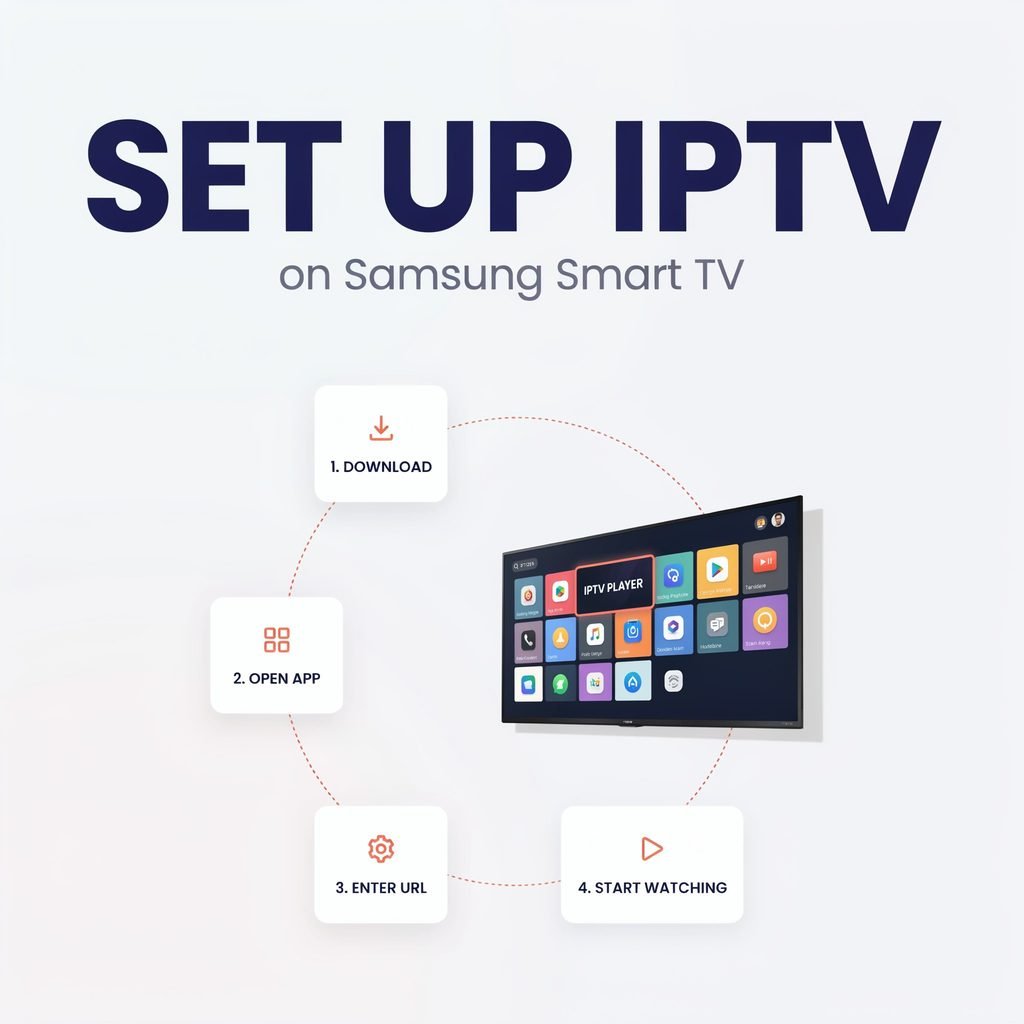
Follow these standard steps for your Samsung Smart Hub IPTV setup:
- Turn on the Samsung Smart TV.
- Press the Home button on your remote.
- Navigate to and open Smart Hub or Apps.
- Use the Search icon (usually a magnifying glass).
- Enter the name of a compatible IPTV player for Samsung TV environments.
- Select the official app listing from the results.
- Review the app description, developer, permissions, and user ratings.
- Select Install.
- Open the app after installation completes.
- Add the app to your Home screen if that option is available for quick access.
Possible app names and availability change by region and time. Examples of popular players include Smart IPTV, SS IPTV, SmartOne IPTV, or IPTV Smarters (if officially available in your region). Do not assume these apps are endorsed by Samsung, and remember that you will need to add a separate subscription or playlist to view content.
How to Add an IPTV Subscription or Playlist
Once your Samsung TV IPTV app is installed, you must link it to your lawful account. The method depends on your provider.
A. M3U Playlist URL
An M3U URL is a playlist address supplied by a legitimate provider. Configuring an M3U playlist Samsung TV setup is very common:
- Open the IPTV player and select the option to add a playlist or upload an M3U file.
- Enter a playlist name if requested.
- Carefully paste the IPTV playlist URL provided by your service.
- Save the playlist.
- Reload or restart the app to fetch the channel list.
- Open the live TV or channel section.
Warning: Never publish or share your M3U links online, as they may contain private access information tied to your account.
B. Xtream Codes API
Many modern providers use an API login system for Xtream Codes on Samsung TV apps. You will need a Server (or portal) URL, a Username, and a Password.
- Choose the Xtream Codes API (or similarly named) login option in your app.
- Enter the provider’s exact server URL.
- Enter your assigned username.
- Enter your assigned password.
- Save the account.
- Wait for the channel and guide data to load.
Copy your credentials exactly and avoid adding any accidental spaces.
C. Portal or MAC-based Setup
Some services use a portal URL combined with your TV’s MAC address (a unique device identifier). Follow your provider’s official setup instructions carefully. Never share your device identifiers publicly, and do not attempt to bypass activation protocols for unauthorized access.
D. Provider-Specific App
Some legitimate television services use their own official Smart TV app rather than a generic player. In this case, simply install the provider’s app from the Samsung store, sign in with your account credentials, and follow the on-screen instructions instead of manually entering a playlist.
Configure the IPTV App
To optimize your viewing experience, explore the app’s settings menu. Common configurations include:
- Language and Time Zone: Ensure these match your location for accurate scheduling.
- IPTV EPG setup (Electronic Program Guide): This feature helps you view program schedules. Note that guide data may be incomplete or unavailable if your provider does not supply it.
- Subtitles and Audio Track: Set your preferred defaults.
- Video Quality: Choose Auto, or select a specific resolution if your connection struggles.
- Buffer Size and Hardware Acceleration: Increasing buffer settings may help with unstable connections by downloading more data ahead of time, but this can also increase delay during live broadcasts.
- Parental Controls: Restrict access to mature content.
- Favorites and Categories: Organize your channels for easier navigation.
- Automatic Playlist Refresh: Keep your channel list up to date.
Advise changing only one setting at a time so you can easily identify what improves or worsens your playback.
Test IPTV Playback
Before settling in for a movie or game, run through a quick testing checklist:
- Open a live channel and let it play for a few minutes.
- Try several channels from different categories (sports, news, entertainment).
- Test an HD channel and a lower-resolution channel.
- Check whether audio and video remain perfectly synchronized.
- Open the program guide to verify the electronic program guide data.
- Test subtitles if available.
- Try a video-on-demand IPTV title if included in your plan.
- Confirm that your subscription has not expired.
If you experience IPTV buffering on Samsung TV devices, determine the scope of the issue. A single-channel problem is likely caused by the provider’s source stream. However, widespread buffering across all channels usually indicates an internet, device, app, or broader service issue.
IPTV Troubleshooting: Common Problems on Samsung TV
Even with a perfect setup, you may encounter occasional hiccups. Use this IPTV troubleshooting table to resolve common issues.
| Problem | Likely Cause | Recommended Solution |
|---|---|---|
| IPTV app is not available | Region restrictions, unsupported TV model, app removed/renamed, Smart Hub country settings, outdated software. | Verify your Smart Hub region, update your TV software, or check the developer’s website for compatibility lists. |
| App will not install | Insufficient storage, poor internet connection, Samsung account issue, temporary Smart Hub glitch. | Free up TV storage, check your network, ensure you are signed into your Samsung account, and try again. |
| IPTV channels keep buffering | Weak Wi-Fi, network congestion, provider server problems, overloaded playlist, high-resolution stream. | Switch to Ethernet, lower the stream quality in the app settings, or contact your provider about server load. |
| Black screen | Invalid/expired stream, unsupported video format, provider outage, app cache issue, incorrect playlist data. | Restart the app, clear the app cache if the option exists, or verify your subscription status. |
| No sound | Muted TV, unsupported audio format, incorrect audio track, external soundbar/HDMI issue. | Check TV and app volume, change the audio track in the player settings, or verify HDMI ARC/eARC connections. |
| EPG is not loading | Incorrect EPG URL, provider lacks guide data, time zone mismatch, expired playlist. | Ensure your TV’s time zone is correct and verify with your provider that EPG data is included in your plan. |
| Login failed | Incorrect username/password, wrong server URL, expired subscription, extra spaces in copied credentials. | Re-enter your IPTV login details carefully, ensuring no leading or trailing spaces were copied. |
| IPTV app crashes | Outdated app, TV software issue, low storage, corrupted app data, unsupported playlist format. | Update the app and TV firmware. If it persists, remove and reinstall the app. |
General Solutions: Always start by restarting the app and restarting the TV. If necessary, power-cycle the TV by unplugging it from the wall for 60 seconds. Restart your router to clear network bottlenecks. Contact your IPTV provider if the stream or account is the issue, and contact Samsung support for TV, Smart Hub, or hardware problems.
Note: Do not assume a VPN, DNS change, or factory reset is always necessary. Factory resetting the TV should be an absolute last resort, as it removes all personal settings and installed apps.
Wi-Fi Versus Ethernet for IPTV
Choosing the right connection type can drastically impact your live TV streaming on Samsung TV experience.
| Factor | Wi-Fi | Ethernet |
|---|---|---|
| Installation | Easy; no cables required. | Requires running a cable from router to TV. |
| Stability | Susceptible to drops and interference. | Highly stable and consistent. |
| Convenience | Excellent for flexible TV placement. | Best for stationary, permanent setups. |
| Interference | Affected by walls, microwaves, and neighbors. | Immune to wireless interference. |
| Best Use Case | Casual viewing, router in the same room. | 4K streaming, competitive sports, distant rooms. |
| Potential Limitations | Speed drops over distance. | Cable length limits and physical routing. |
Ethernet is often preferable for a stationary TV, but modern Wi-Fi (especially Wi-Fi 6) can work exceptionally well when the router is nearby and the network is stable.
How to Improve IPTV Streaming Quality
If you want to optimize your Samsung TV streaming apps, try these practical, legal tips:
- Use a wired Ethernet connection whenever possible.
- Place your router in an open, central location, elevated off the floor.
- Reduce simultaneous downloads, uploads, and smart home device usage during peak viewing times.
- Close unused background apps on your TV to free up processing memory.
- Keep your TV firmware and IPTV player updated to the latest versions.
- Choose a lower stream quality (e.g., 720p instead of 1080p or 4K) if your connection cannot handle high bitrates.
- Use a reputable, lawful provider with robust server infrastructure.
- Avoid overloaded or suspicious free playlists that lack proper bandwidth allocation.
- Select the correct time zone to ensure guide data syncs properly.
Is IPTV Legal and Safe?
The technology behind IPTV is entirely legal; it is simply a method of delivering data. However, legality depends entirely on the content source, licensing agreements, and your user rights. Legitimate providers normally explain their content rights, billing terms, and geographic availability clearly.
Be highly cautious of services promising every premium global channel for an unusually low monthly price, as these often rely on unauthorized restreaming. Avoid apps or websites requesting unnecessary personal or financial information. Never download unknown APK files or follow unsafe instructions intended for mobile operating systems on your Tizen TV. Always use strong, unique passwords, avoid sharing your IPTV credentials, and review privacy policies and cancellation terms. Because copyright and streaming laws vary by location, always ensure you are accessing legal IPTV services within your jurisdiction. Using official app stores and provider websites is the safest route. Furthermore, avoid claims that a VPN inherently makes unauthorized streaming legal; it only masks your IP address.
Samsung TV IPTV Alternatives
If you find that IPTV not working on Samsung TV models is a persistent issue due to app unavailability or hardware limits, consider these alternatives:
- Official Provider App: Many major legal streaming services have dedicated Samsung TV apps that bypass the need for generic players.
- External Streaming Devices: Connect an Apple TV, Roku, Amazon Fire Stick, or Nvidia Shield via HDMI. These devices offer vastly different app ecosystems.
- Android TV / Google TV: If your provider officially supports Android environments, a dedicated set-top box may offer better compatibility.
- Casting and Mirroring: Cast content from your smartphone or tablet to the TV, provided both the app and the TV support the protocol.
- Web Browser: Check whether your provider supports web playback through the Samsung TV’s built-in internet browser, though this is often less user-friendly.
Always verify compatibility, privacy policies, support channels, and legal content access when using external devices.
Frequently Asked Questions
1. Can I install IPTV directly on a Samsung Smart TV?
Yes, you can install an IPTV player directly on a Samsung Smart TV via the Smart Hub. However, the player is just an interface. You must also have a lawful IPTV subscription, M3U playlist, or API credentials from a legitimate provider to actually watch content.
2. Does Samsung Smart TV support IPTV?
Samsung Smart TVs support various third-party IPTV player applications through the official Tizen app store. Samsung does not provide an official “IPTV channel” service, but the Smart Hub allows you to download compatible apps to stream your own legal subscriptions and playlists.
3. Do I need a separate IPTV subscription?
Yes. An IPTV player downloaded from the Samsung store does not include channels. It acts as a media player. You must purchase a separate, legal subscription or obtain a valid playlist from a licensed content provider to populate the app with live TV and VOD.
4. Is IPTV free on Samsung TV?
The IPTV player apps themselves are often free to download from the Samsung Smart Hub. However, accessing premium live TV channels, sports, and on-demand movies requires a paid subscription to a legal IPTV service provider. Free playlists found online are often unreliable or unauthorized.
5. Why can’t I find my IPTV app in Smart Hub?
App availability in the Samsung Smart Hub varies heavily by country, region, TV model, and Tizen OS version. If an app is missing, it may be geo-blocked in your region, incompatible with your specific TV hardware, or removed by the developer. Check the app’s official website for compatibility details.
6. Can I use an M3U link on Samsung TV?
Yes, most third-party IPTV players on Samsung Smart TVs support M3U playlist URLs. You will need to copy the M3U link provided by your legal subscription service and paste it into the designated playlist upload section of your chosen IPTV app.
7. What is the difference between M3U and Xtream Codes?
An M3U playlist is a simple text file or URL containing a list of stream links. Xtream Codes API is a more advanced login method requiring a server URL, username, and password. Xtream Codes often provides a more stable connection, better user interfaces, and integrated electronic program guides.
8. Why is IPTV buffering on my Samsung TV?
IPTV buffering on Samsung TV devices is usually caused by insufficient internet bandwidth, weak Wi-Fi signals, network congestion, or overloaded servers on the provider’s end. Try connecting your TV via Ethernet, lowering the stream resolution, or restarting your router to resolve the issue.
9. Is Ethernet better than Wi-Fi for IPTV?
Generally, yes. Ethernet provides a dedicated, stable connection that is immune to the wireless interference and signal degradation that often cause Wi-Fi to drop packets. For high-bitrate 4K live TV streaming, a wired Ethernet connection is highly recommended for the smoothest experience.
10. Can I use IPTV on an older Samsung TV?
You can use IPTV on older Samsung Smart TVs as long as the TV’s operating system supports the app and the hardware can decode the video streams. However, very old models may lack the processing power for HD streams or may no longer receive app updates from the Smart Hub.
11. Do I need a VPN for IPTV?
A VPN is not strictly required to setup IPTV on Samsung Smart TV devices, and it does not make unauthorized streaming legal. Some users employ a VPN for general privacy or to secure their home network traffic, but it can sometimes reduce streaming speeds or cause compatibility issues with certain apps.
12. How do I update an IPTV app on Samsung TV?
To update an app, press the Home button, navigate to the Apps menu, and select the Settings gear icon in the top right corner. Here, you can view installed apps and enable “Auto Update” or manually select an outdated IPTV player to install the latest version.
13. Can I watch IPTV in 4K?
Yes, you can watch IPTV in 4K if your Samsung TV supports it, your internet connection is exceptionally fast and stable (usually 25 Mbps or higher per stream), and your legal IPTV provider actively broadcasts channels in native 4K resolution.
14. Why is the EPG not showing?
If your electronic program guide is blank, the IPTV provider may not supply EPG data for your specific channels. It could also be caused by an incorrect time zone setting on your TV, an outdated playlist URL, or a temporary server outage preventing the guide data from downloading.
15. What should I do if my IPTV login stops working?
First, verify that you copied your Xtream Codes or portal credentials exactly, without extra spaces. Check if your subscription has expired or requires renewal. If your details are correct and active, contact your IPTV provider’s support team to check for account restrictions or server outages.
Conclusion
Learning how to setup IPTV on Samsung Smart TV models opens up a world of flexible, modern entertainment. The process generally involves connecting your TV to a stable internet source, installing a compatible IPTV player or official provider app from the Smart Hub, entering your lawful account details, and adjusting playback settings for the best picture quality. By understanding the difference between a player and a provider, and by prioritizing licensed services, you can enjoy reliable live TV streaming, video on demand, and catch-up TV for years to come. Always rely on official installation methods and keep your TV’s software up to date for the best possible experience.